1What you need
Only the Android device is required, with Wi-Fi for it to connect. Everything else is optional and adds to what the system can do.
| Item | Notes |
|---|---|
| Tablet | A 64-bit Android device, Android 10 or newer, with a front camera and Google Play Services (push alerts between devices use it). A tablet is preferred for its big, easy-to-read screen; the app also runs on an Android phone, such as an old one. One device per room, up to 6 per household, linked together to cover more rooms. |
| Tablet charger | A charger strong enough to keep the tablet charging with the camera running. A weak one sends the family "Tablet charger" alerts. |
| Fall sensor | Optional. Ceiling radar (shows up as Fall sensor, network name bioalign-fall-…). Without one, fall detection and gait monitoring cover what the tablet's camera sees. Add one to watch a room without a camera, such as a bedroom or bathroom. In a room with a tablet, one inside the camera's view also lets the camera rest while the room is empty (step 4). |
| Sleep sensor | Optional. Radar over the bed (shows up as Sleep sensor, network name bioalign-vitals-…). Measures one person's sleep, breathing and heart rate. |
| Sensor power | Only with sensors. Each sensor is powered over USB: plug it into a USB power adapter. It must stay plugged in. |
| Calibration mat | Optional. The printed calibration mat, for calibrating the tablet camera so walking is measured accurately (step 4). Download the mat (PDF) and have it printed before you start: see Print the calibration mat in step 4. |
| Home Wi-Fi | The tablet, and every sensor you add, join the same home network. The sensors use 2.4 GHz Wi-Fi only. Have your Wi-Fi password ready. |
| Phones | Optional. Each family member's phone, for the family app and its alerts. |
| A tape measure | Only with a fall sensor. To measure the sensor's height and where the bed is. |
| Health devices, panic buttons, door sensors | Optional add-ons. Bluetooth health devices (step 8), wearable panic buttons (step 9), and Bluetooth door and window sensors (step 10). |
2Before you start
Which kind of tablet you have
The steps differ slightly depending on where your tablet came from:
- Bought from BioAlign. The tablet arrives with the app ready. You pay by card. The app has its own Wi-Fi screen, updates itself, and reopens by itself after a restart.
- Your own tablet, with the app from Google Play. You pay through Google Play, starting with a 14-day free trial. The tablet runs a one-minute device check during setup (see step 3). Updates come from Google Play.
Your account
You create your account on the tablet during setup. The person who creates it holds the account. One subscription covers the whole household, and extra tablets cost nothing extra.
Google Play tablets: create the account on the tablet. An account made on the website can't subscribe through Google Play.
Until the subscription is active the tablet does nothing at all: no camera, no sensors, no alarms, no Help button. Monitoring starts the moment your payment is confirmed.
3Set up the tablet
About 10 minutes.
- Open the app (from Google Play, install it first).
- Get connected. The tablet shows "Connect this tablet to your Wi-Fi" (device-owner tablets) or "Choose a Wi-Fi network". Pick your home network and enter the password. On a tablet bought from BioAlign the password is also kept, encrypted, so your sensors can join later without asking again.
- Create the account, or sign in. A new tablet opens on "Create your household's account": first and last name, email, a password of at least 8 characters, and an optional household name. Read and tick each agreement, then Create account. If your household already has an account, choose Already have an account? Sign in.
- Start the subscription. "Start your subscription" shows the price.
Google Play tablets: Subscribe with Google Play. You get 14 days free. When the free days end, Google Play charges automatically each month. Cancel any time in Google Play → Subscriptions.
Tablets bought from BioAlign: Continue to secure card payment and enter your card.
After paying, the tablet shows "Confirming your payment…". It can take a moment; tap Check again if it doesn't move on. - Name the room (second and later tablets only). "Which room is this tablet in?" Pick one (Living room, Bedroom, Kitchen, Bathroom, Hallway, Dining room) or type a name. The other tablets show this name when something happens here. The first tablet in a home is simply called "Home".
- Shared Wi-Fi. "Do you share your Wi-Fi with other residents or households?" Tick yes if it is shared, for example in an apartment building or a care home. Then you add your sensors yourself in Settings → Radar sensors, so the tablet never uses a neighbour's sensor. Tap to continue.
- Device check (Google Play tablets only). "Check this device": stand where the camera can see you and press Start. It takes about a minute and nothing is recorded or sent. If your tablet is too slow, it still works: camera fall detection and gait monitoring are turned off, and you can turn them back on in Settings → This tablet. Live view, the virtual sitter, fall sensors, Help and reminders work as normal.
- Allow camera, microphone, notifications and photos when Android asks. If the camera is refused, the sensors still run but the camera does not watch for falls.
- Alarm settings. Once setup is done, the app opens three Android settings pages, one at a time. Turn each on:
- Do Not Disturb access, so the fall alarm sounds even when the tablet is in Do Not Disturb.
- Run in the background: tap Allow when Android asks whether BioAlign can run in the background, so it never pauses monitoring to save battery.
- Full-screen alarm, so a fall alarm can fill the screen.
The tablet then opens the home screen: the day's medications and appointments, the I'm OK and Help buttons, and two lights at the top, Cameras and Watching.
The tablet is not locked into the app. You can leave it like any tablet. The screen stays on, shows over the lock screen, and the system bars hide until swiped.
4Place the tablet
- The tablet watches with its front camera, the one above the screen. Put it where it faces the area where the person walks and could fall.
- To aim it, open Menu → Family Dashboard → Settings → This tablet → Camera view for mounting → Open camera view. The camera fills the screen with nothing drawn over it. Line it up so the floor is in view: the bed in frame, or the far wall's floor and ceiling centred. Tap Done.
- Calibrate the camera (below). It lets the tablet measure real distances on the floor: walking speed, stride and where someone is.
- Mount it at chest level.
- Keep it plugged in. Within a few minutes of plugging in, check that the battery is rising. A tablet whose battery falls 3% or more in 10 minutes on the charger sends the family a "charger isn't keeping up" alert.
Print the calibration mat
- Download the mat: BioAlign-Calibration-Mat.pdf (for printing). There's also an image version (PNG). It's also linked from Settings → Camera Calibration.
- Have it printed by a print shop on a large-format printer. It's big: the pattern is 0.80 × 1.12 m (31.5 × 44.1 in), about 36 × 48 in with its white border. Vinyl is best: it lies flat, won't crease and wipes clean. Heavy matte paper works too.
- Ask for it printed at 100% / actual size. No "fit to page", no scaling.
- When it comes back, measure one black square with a tape measure. It must be 16 cm (6.3 in) on each side. If it isn't, it was scaled: have it reprinted at actual size, or enter the size you measured in step 6 below.
- Keep it flat (rolled, not folded). You'll use it again if you move a tablet.
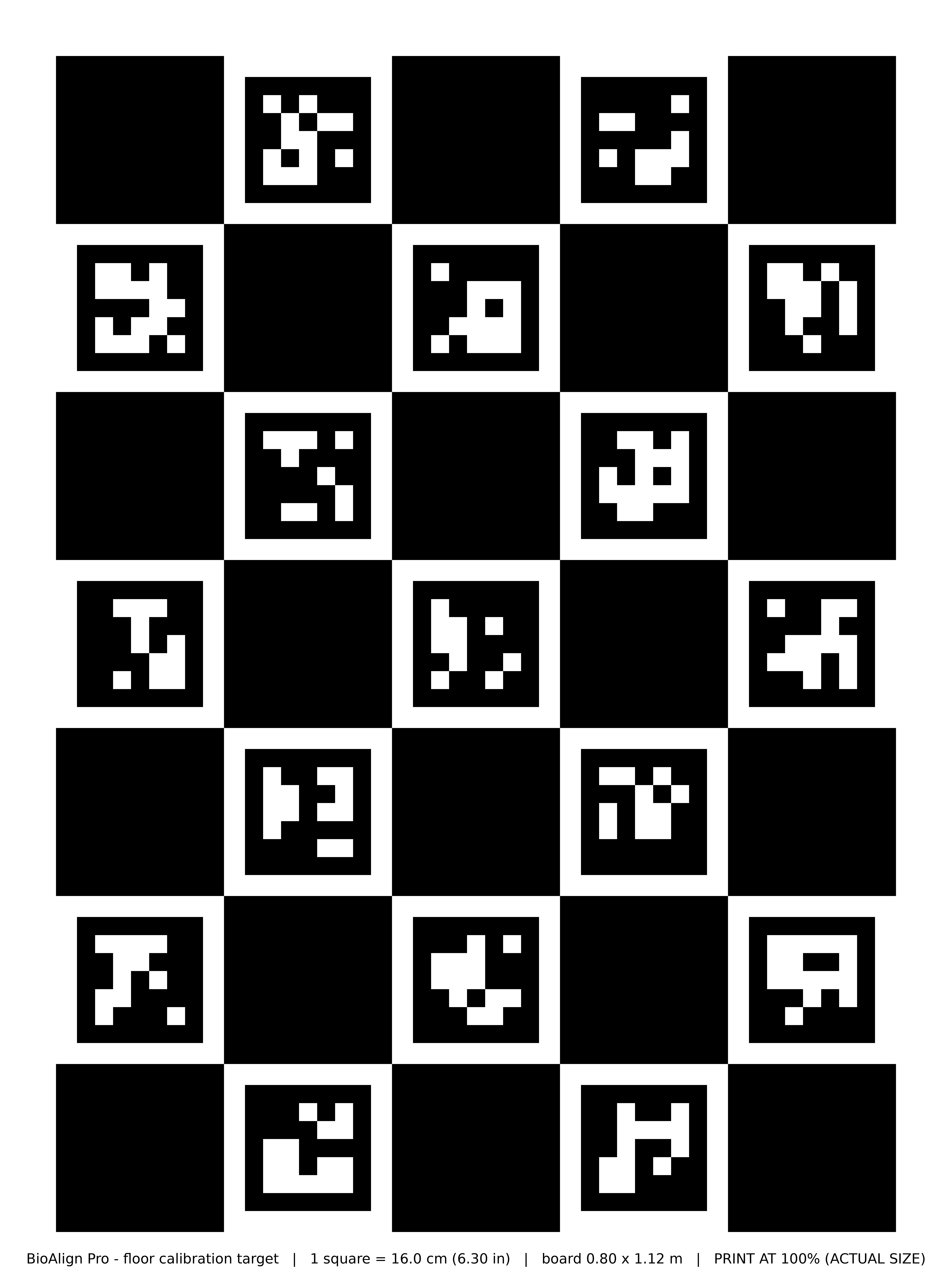
Calibrate the camera
Do this on the tablet itself, one tablet at a time, after the tablet is mounted where it will stay.
- Create your rooms first: Settings → Rooms.
- On the tablet, open Menu → Family Dashboard → Settings → Camera Calibration. Next to this tablet's camera, pick its room under Select room…, then tap Calibrate.
- Lay the mat flat on the floor where people walk, with all of it in the camera's view. Smooth out any wrinkles or curled edges.
- Light the room evenly. Avoid sunlight or a lamp shining across the mat (glare) and hard shadows across it.
- Step out of the camera's view so nothing covers the mat.
- Check Printed square size says 16 cm, or the size you measured, then tap Capture & calibrate.
- The tablet finds the mat and saves the calibration. If it says it couldn't find the mat, make sure it's flat, fully in view and evenly lit, then tap it again.
- Pick up the mat. If you move or re-aim the tablet later, calibrate again: Recapture & recalibrate.
With a fall sensor in the same room, the tablet's camera runs only while someone is in the room: when the fall sensor has seen nobody for 2 minutes the camera switches off, and it switches back on the moment the sensor sees someone. This keeps the tablet cool overnight and while the room is empty. Without a fall sensor in its room the camera runs all the time. While the camera is on and nobody has been seen for 30 seconds, the tablet also pauses its analysis. All of this is normal.
5Add the people
For each person you care for. Do this before adding sensors: a sleep sensor, a health device and a panic button each belong to a person.
- Open Family Members → Add family member for each person being cared for: name, date of birth, gender, an email (their username) and a password of at least 8 characters.
- Enrol each face on a tablet. On a phone or computer the page says faces are enrolled on the tablet. On the tablet, tap the camera button next to the person. They look at the camera for five short poses: straight on, slightly left, slightly right, chin up, chin down. A face enrolled on one tablet is recognised by every tablet in the home.
- Walks are only kept for people the tablet recognises, so enrol everyone who lives in the home.
Face photos never leave the tablet. The tablet keeps a set of measurements, sealed with the household's key. If a tablet is replaced, the new one signs in and recognises everyone without re-enrolling.
6Add the sensors
Optional. Skip this step if you have no fall or sleep sensors. Sensors are added from the tablet, so have it next to you.
- On the tablet open Menu → Family Dashboard → Settings → Radar sensors and tap Add sensor. Allow Bluetooth and location when the tablet asks, and make sure Location is turned on in Android. Sensor setup needs both.
- Under Wi-Fi the page shows the network the tablet is on. If it says "Password needed", type the Wi-Fi password and tap Save. The tablet keeps it, encrypted, for every sensor. The sensors use 2.4 GHz Wi-Fi.
- Plug a new sensor in near the tablet. The page reads "Looking for sensors in setup mode" and lists sensors it finds, nearest first, as Fall sensor or Sleep sensor.
- Tap Set up on one sensor. The tablet gives it the Wi-Fi and waits for it to come online, up to about 45 seconds, then shows "Connected". Set up one sensor at a time.
- "Which room is … in?" Pick the room or type a new one. For a Sleep sensor, also choose "Whose sleep does it measure?".
- Unplug the sensor, mount it (below), and plug it back in. It rejoins the Wi-Fi by itself.
Mounting
- Fall sensor: on the ceiling, pointing straight down, in the middle of the area to watch. If it is in a room with a tablet, put it over the area the tablet's camera sees, so it sees anyone the camera could. It suits ceilings from 2.4 m to 3.0 m. Measure its height from the floor; you'll need it in step 7. A fall sensor that isn't mounted on the ceiling at the height it's set for can report falls constantly.
- Sleep sensor: above the bed, about 1 metre above the mattress, directly over the sleeper's chest.
- The sensors have no lights. To see whether a sensor is working, check it on the tablet under Settings → Radar sensors, or on the family dashboard.
Sensor updates are automatic. When BioAlign publishes new sensor software, a tablet in the home installs it on each sensor over Wi-Fi, one at a time, never while an alarm is sounding.
7Rooms and the bed zone
On the tablet, or on any computer signed in to your account.
Each fall sensor tracks people in its room, and needs to know how high it is mounted and where the bed is. The out-of-bed alert only works once a Bed zone is drawn.
- Open Settings → Radar sensors and edit the fall sensor.
- Under Room set-up, enter Sensor height from the floor (metres), for example 2.4. Leave How the sensor is mounted on "On the ceiling, pointing down (usual)".
- Add a zone for the bed: Name, Kind Bed, and its Left, Right, Near and Far edges in metres, measured on the floor from the point directly under the sensor. Left of that point is negative. Measure with a tape from the spot under the sensor.
- Add other zones if useful: Chair, Door, Bathroom or Other. Up to 20.
Night is 10 pm to 6 am. Getting out of bed at night sends nothing. Still out of bed after 20 minutes sends the family a Still out of bed alert. It is a normal alert, not an alarm.
8Health devices
Optional. Bluetooth blood-pressure cuffs, scales, pulse oximeters, thermometers, glucose meters and heart-rate straps. No separate app from the device's maker is needed.
- On the tablet open Settings → Health devices and tap Set up a health device. Allow Bluetooth if the tablet asks, and keep Bluetooth on.
- "Switch the device on": turn the device on, or take a reading with it. It appears on the screen within a few seconds.
- Tap Set up on the device, then Pair on the message that appears. If it says "Pairing didn't finish", put the device in pairing mode and try again.
- "Whose readings are these?" Pick the person. Then tap Done.
Every reading from a device goes to the person you picked, even when someone else uses it. If several people share a blood-pressure cuff, each person presses Take blood pressure on their own dashboard first, and the next reading goes to them. Keep any other device (scale, oximeter, thermometer, glucose meter) to one person.
Readings appear on each person's Vitals page. A heart-rate strap sends a reading every few minutes while it is worn.
9Panic buttons
Optional. A Bluetooth button worn on the wrist or as a pendant.
- On the tablet open Settings → Panic buttons and tap Add a panic button. Allow Bluetooth if the tablet asks.
- "Switch the button on": hold it close to the tablet. If it doesn't appear within a few seconds, press it once. Tap Set up on it.
- Choose which button it is, if asked, and "Who wears it?", then Next.
- "Leave the button alone" while the tablet listens, then "Press the button once now", one short press, so the tablet learns it.
- The tablet says "A press now calls for help."
A press is the same as tapping Help: the tablets sound the alarm and your family is alerted. Bluetooth must stay on for the tablet to hear the button.
Your family may also see Panic button battery low (20% or less; replace the battery) and Panic button not heard from (the tablets haven't heard the button for about 6 hours; check it's nearby and its battery isn't flat).
10Bluetooth door and window sensors
Optional. A Bluetooth door and window sensor on each door to the outside, for a person who may wander at night. It talks straight to the tablet over Bluetooth. No other app is needed.
- Put the battery in. Fit the sensor on the door frame and its magnet on the door, so the two sit side by side when the door is closed.
- On the tablet open Settings → Door sensors and tap Add a door sensor. Allow Bluetooth and location if the tablet asks, and make sure both are turned on.
- "Fit the sensor on the door and close the door. Then tap Start and open the door once." Tap Start. At "Open the door now", open it once and close it again. Keep the other doors closed while you do this.
- "Which door is it on?" Give it a name the family will recognise, such as Front door or Back door.
If that door opens during the household's night hours, the family is alerted. For someone with a sleep sensor, only while they are out of bed. Bluetooth must stay on for the tablet to hear the sensor.
Your family may also see a door sensor's battery low, or that it has not been heard from for a while (check it's still on the door and its battery isn't flat).
11Family on their phones
For each family member who should get alerts.
- Add a login for each person in Settings → Family Logins: name, email and a password you choose for them. They get every alert. There is no email invitation, so tell them their email and password yourself.
- On their phone, open
homelite.bioaligncare.com/family-app/, or scan the QR code in Apps & Devices. - iPhone (Safari only): tap Share (the square with an arrow), then Add to Home Screen, then Add. Open it from the new icon.
Android (Chrome): tap the ⋮ menu, Install app (or Add to Home screen), confirm, then open it. - Sign in, then tap Turn on on the alerts banner and allow notifications. The app says "Alerts are on ✓".
Urgent alerts sound a siren in the family app until someone taps Acknowledge. Acknowledging on one phone clears it for the whole family and silences the tablets.
12Household settings
All in Settings.
| Where | What to set |
|---|---|
| System → Time zone | Set the home's time zone so reminders fire at the right local time. |
| System → Alerts | Room-tracker fall alarm, on by default. Turn it off if it isn't wanted. |
| System → Screen brightness | Day 90%, night 25%, day from 7:00, night from 20:00, dims to 10% after 5 minutes untouched. Optional black screen at night; a tap wakes it. See the note below before turning it on. |
| This tablet | Fall detection and gait monitoring (both on), family video at night, fall recordings, camera view for mounting, Wi-Fi. |
| Privacy & Sensors | Whether family may open the live camera, with or without sound, and during which hours. The tablet shows when someone is watching. |
| Health devices · Panic buttons | Steps 8 and 9. |
| Tablet PINs | A 4 to 8 digit PIN per person for the tablet's main menu, each one different. |
Black screen at night. While it is on, a fall alarm on that tablet makes no sound and the screen stays black. Your family is still alerted when the tablet is online. If the tablet is offline at night, nobody is alerted. Choose with that in mind.
13Check it works
Go through this list once everything is set up.
- On the tablet's home screen, Cameras: On and Watching: Yes.
- On the family dashboard, Sensors shows every sensor online, each in its room.
- Tap I'm OK on the tablet. It shows "Thanks — your family has been told you're OK ✓" and each family phone gets a Check-in notification.
- Tap Help on the tablet. Each family phone sounds an urgent Help requested alert. Acknowledge it on one phone and confirm it clears everywhere.
- If you added a panic button, press it once and check the same Help requested alert arrives.
- Each family phone shows "Alerts are on ✓".
- Every person in the home is enrolled (Family Members shows no "Face not enrolled").
- The bed zone is drawn for each bedroom fall sensor.
14What the family gets
Every alert goes to every family login in your household, and shows on the family dashboard.
| Alert | When | Urgency |
|---|---|---|
| Fall detected | The camera or a fall sensor sees a fall. Your family is alerted straight away, and the tablet sounds its alarm. | Urgent |
| Fall — no response yet | Nobody tapped I'm OK within 60 seconds of the fall alarm. | Urgent |
| Help requested | Someone tapped Help or pressed a panic button. | Urgent |
| Still out of bed | Out of bed at night for 20 minutes. Getting up alone sends nothing. | Normal |
| Check-in | Someone tapped I'm OK. | Normal |
| Sensor offline | A sensor stopped reporting; that room isn't watched until it's back. | High |
| Monitoring paused | A tablet hasn't checked in for 3 hours. | High |
| Panic button not heard from | The tablets haven't heard a panic button for about 6 hours. | High |
| Tablet battery very low | 15% or less and not charging. | High |
| Tablet battery low · Tablet charger | 30% or less, or the charger can't keep up. | Normal |
| Panic button battery low | A panic button's battery is at 20% or less. | Normal |
After a fall, tapping I'm OK on the tablet shows "Thanks — your family has been told you're OK ✓". If the tablet can't reach the internet during an alarm, its screen says "Cannot reach help. Call 911." and keeps sounding.
While the tablet is offline, Help and I'm OK are saved on the tablet and sent to your family as soon as it reconnects. If you need help right now, call someone directly.
15More tablets, a new tablet, new Wi-Fi
Add a tablet
Set it up as in step 3 and sign in with your account at home, on your home Wi-Fi. It asks which room it's in. A household can have up to 6 tablets. A fall or Help on any tablet sounds the alarm on every tablet with the room's name.
Replace or remove a tablet
On a phone or computer: Apps & Devices → Household tablets → Remove. Then sign in on the new one. Faces and settings come back from the server. A removed tablet shows Add this tablet back.
New router or internet provider
Move every tablet onto the new Wi-Fi within a few minutes of each other: on each tablet open Settings → This tablet → Wi-Fi → Open Wi-Fi settings and join the new network. The sensors move to it by themselves within a few minutes; leave them plugged in. If a tablet shows "Your sensors need the Wi-Fi password", tap it and enter the new password.
16Messages and fixes
| The tablet says | What it means and what to do |
|---|---|
| Get connected | No working internet. Join the home Wi-Fi. |
| Set this tablet up at home | A second tablet must be set up in the same home, on the same internet connection as your other tablets. |
| This household is full | 6 tablets already. Remove one in Apps & Devices, then tap Try again. |
| Tablet removed | It was removed from your household and does nothing until it's added back. Tap Add this tablet back. |
| Tablet locked | The tablet was taken out of the home. It unlocks by itself within an hour of being back on the home internet. You can join Wi-Fi from this screen. |
| Reconnecting to your household… | The internet dropped after a restart. It reconnects by itself. Until then, Help and I'm OK are saved and sent when it's back; if you need help now, call someone directly. |
| Start your subscription | Your household has no active subscription. Nothing runs until it's paid. |
| Your sensors need the Wi-Fi password | The tablet is on a new Wi-Fi network. Tap it and enter the password. |
| Sensor: Wrong Wi-Fi password | Enter the password again when the sensor setup page asks for it. Sensors use 2.4 GHz Wi-Fi. |
| Sensor: not found / not in range | Move the sensor closer to the tablet, check it's plugged in, and tap Try again. |
| Sensor setup won't start | Allow Bluetooth and location for the app, and turn Location on. |
| BioAlign was updated | After an app update, tap this notification to turn camera monitoring back on. |
| BioAlign restarted | After the tablet restarted, tap this notification to turn camera monitoring back on. |
Support: support@kinovaai.tech